
A while back, our team at MyKidsTime spent time trialling CoSchedule for our content and social media management. Here’s what we think of CoSchedule, based on our own hands-on experience getting set up and using it day to day.
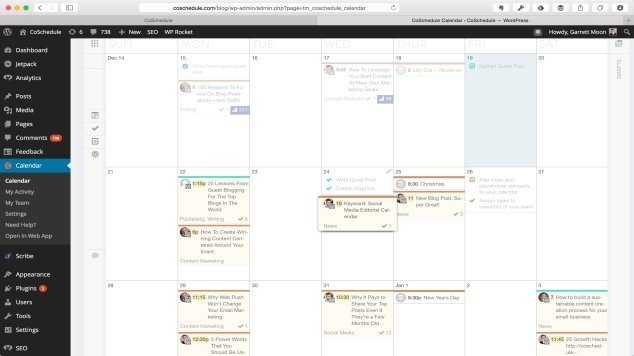
CoSchedule describes itself as an all-in-one marketing calendar that brings your content and social media into the same place — a single calendar of record for your team. It offers a WordPress plugin so you can work right on your website, manage your content team’s workflow, and push content out to social media, all from one dashboard.
So does it do what it says?
We were genuinely impressed. Our focus here is on the social media side of CoSchedule — how it handles connecting profiles and scheduling posts — since that’s the part we spent the most time testing.
Implementing CoSchedule
Getting started was relatively straightforward. You sign up for an account to start a free trial, then follow CoSchedule’s instructions to install the plugin on your WordPress site. (We had our tech team handle this step, since it needs admin access to your site.)
Once installed, you log in to your WordPress back end and complete a final login to CoSchedule using your chosen username and password. From there, you land on your CoSchedule dashboard — for us, it sits just below the comments section. This is where you set up team access and link your social media profiles.

Linking Your Social Profiles
This part was refreshingly easy. Go to Settings, then Social Profiles, and click the connect button for whichever platform you want to add. Authorise the connection, and you’re done — your social profiles are linked.

Creating a Social Media Post
CoSchedule makes it simple to post across several profiles at once. From your Calendar — the engine behind CoSchedule — click the blue circle icon in the top right with the small pencil symbol, then choose the Social Message option.

From there, pick which profiles you want the message to go out on, choose your message type (text, image, or link), and wait for your post to load if you’ve added an image or a link. Then either publish immediately or schedule it using the calendar and time options.

That’s really it. It’s a straightforward, click-through process with no fiddly extra steps.
If you’d like to see CoSchedule in action, here’s the video that walks through it:
https://coschedule.wistia.com/medias/c2cj6gqunu
You can find out more and check CoSchedule’s current free trial offer on their website.
Have you tried CoSchedule yourself? We’d love to hear what you think — tell us in the comments below.
Frequently Asked Questions
What is CoSchedule used for?
CoSchedule is a marketing calendar tool that combines content planning and social media scheduling in one place, so teams can plan, manage, and publish from a single dashboard.
Does CoSchedule work with WordPress?
Yes. CoSchedule offers a WordPress plugin that connects directly to your site, so your content calendar and social scheduling tools sit alongside your usual WordPress dashboard.
Is CoSchedule easy to set up?
In our experience, setup was straightforward, particularly linking social media profiles. Installing the plugin itself is best handled by whoever manages admin access to your WordPress site.
Can I try CoSchedule before committing?
CoSchedule has historically offered a free trial period for new users. Trial length and terms can change, so it’s worth checking their website for current details before signing up.
Related Articles
- Simple Tools to Help Parents Run a Home-Based Business
- How to Manage Your Time Better as a Busy Parent
- Our Favourite Productivity Tips for Family Life
Save This for Later
If you’re weighing up tools for managing content and social media, save this article so you can come back to it when you’re ready to compare your options.
Don’t Miss Our Weekly Ideas
Want more tips like this delivered straight to your inbox? Sign up for the MyKidsTime newsletter for weekly ideas, articles, and inspiration for family life.