Does your child watch YouTube Kids? If you’ve ever worried about how easily they can drift from one video into something you’re not so happy about, you’re not alone. YouTube Kids has parental control options that let you decide exactly what your child can watch — right down to individual videos and channels. Here’s how to set them up.
Sign up for our free Newsletter, stuffed full of ideas, competitions and offers. Did we mention it’s free?
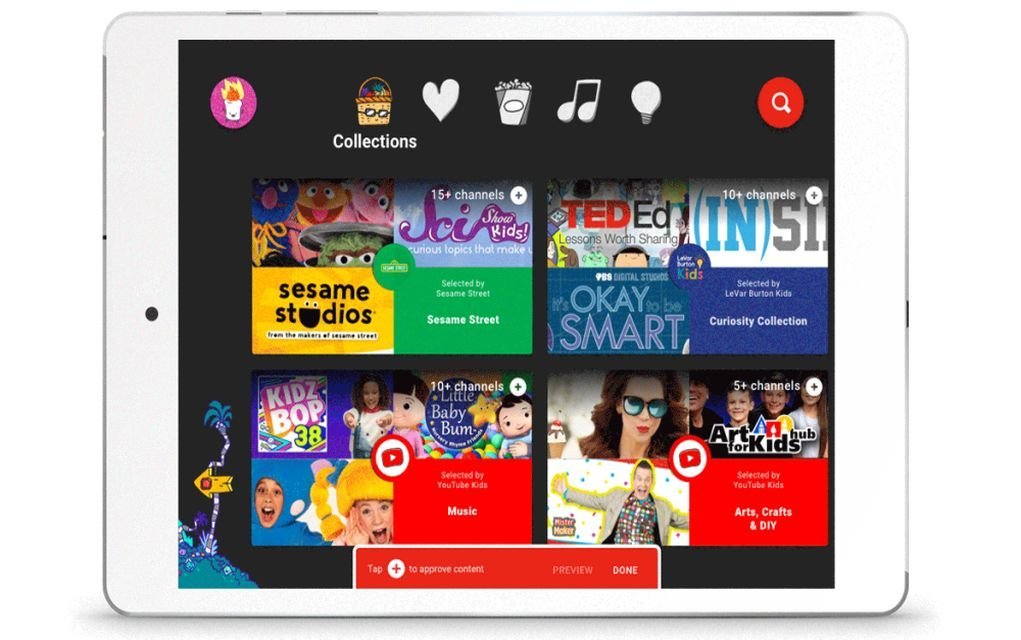
One of the most requested parental controls on YouTube Kids lets you handpick every video and channel your child can access in the app. Once it’s switched on, your child can watch only the content you’ve chosen — they won’t be able to search for anything else on their own.
How to Set Up YouTube Kids Parental Controls

- Open settings.
- Go to your child’s profile.
- Select “approved content only.” From here you can start picking videos and channels for your kids. Once this mode is set up, kids won’t be able to search for content on their own.
You might also enjoy reading Netflix Parental Controls Upgraded for Better and Safer Viewing
YouTube Kids “Older” Setting for 8–12 Year Olds

YouTube Kids also has an “Older” content setting designed for tweens, featuring things like popular music and gaming videos alongside the usual mix.
If you feel your child is ready for a bit more variety, you can choose the “Older” setting when setting up a new profile or updating an existing one.
The “Younger” setting is the default experience and sticks to a wide selection of sing-alongs and age-appropriate learning videos.
You can switch between “Younger,” “Older,” and fully parent-approved content at any time, so it’s easy to adjust as your child grows or as your comfort level changes.
You might also enjoy reading A Parent’s Guide to Setting Up PlayStation 4 Parental Controls
Stay Vigilant — Even With Controls Switched On
YouTube has been clear that parents still have an important role to play, even with these settings turned on. As James Beser, product director for YouTube Kids, put it: “We work hard to make videos in the app family friendly, but no system is perfect. It’s always possible that a parent may find something they don’t want their child to watch in the ‘Younger’ or ‘Older’ experiences. If this happens, we ask that parents block and flag the video for review by our team.”
That’s good advice regardless of which setting you use — no filter is completely foolproof, so it’s worth keeping an eye on what your child is watching, especially in the early days after you change a setting.

Have you tried out these YouTube Kids parental controls? Tell us your thoughts in the comments below.
Frequently Asked Questions
What’s the difference between “Younger” and “Older” content settings?
“Younger” is the default and focuses on sing-alongs and age-appropriate learning videos. “Older” opens up a wider range of content, including popular music and gaming videos, and suits many children aged 8–12.
Can I choose exactly which videos my child watches?
Yes. The “approved content only” setting lets you handpick individual videos and channels. With this switched on, your child can only watch what you’ve chosen and can’t search for anything else themselves.
Can I change these settings later?
Yes, you can switch between “Younger,” “Older,” and parent-approved content at any time from your child’s profile settings, so you can adjust as your child grows.
What should I do if my child sees something inappropriate?
Block and flag the video within the app so YouTube’s team can review it. It’s a good habit to check in on what your child is watching from time to time, even with parental controls switched on.
Related Articles
- Netflix Parental Controls Upgraded for Better and Safer Viewing
- A Parent’s Guide to Setting Up PlayStation 4 Parental Controls
Looking for more ways to keep screen time safe and fun? Browse our family life hub for more parenting tips and ideas.
Want more tips like this straight to your inbox? Sign up for our free newsletter for weekly ideas, competitions and offers for your family.